Configure Field-Level Access
Field-level access must be configured for each role used by a consumer to control the specific fields that are populated when that consumer requests data.
To configure Field-Level data access, navigate to
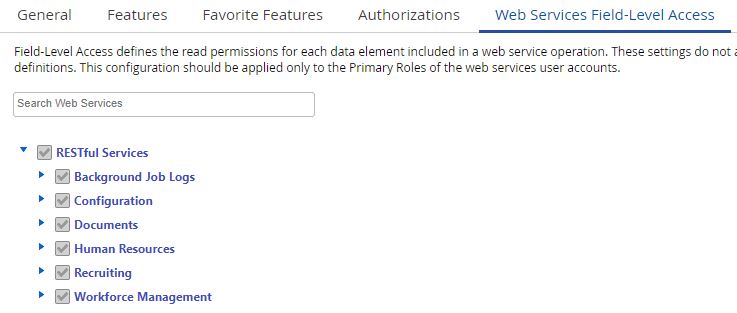
System Admin > Roles. Click the Web Services Field-Level Access tab in the bottom panel, as illustrated in the following screenshot:
The
Web Services Field-Level Access tab provides a hierarchical view of the web services response types separated by the type of service (
RESTful Services and
SOAP Services) and the data entities and elements available within each.
In this page, only
RESTful Services related controls will be described.
For each of the following item, expand and select the relevant elements according to your needs:
- Background Job Logs access job log detail information
- Configuration access company organization configuration data like locations, departments, positions and HR Admin setup tables like employment statuses, pay types and pay classes
- Documents: access to the documents attached to an employee
- Human Resources: access employee HR data like demographics, statuses and work assignments. You are able to retrieve this information utilizing the Employee endpoint and the Expand parameter by accessing the different topics or the individual segmented Employee endpoints if you are only looking for a smaller subset of specific data
- Recruiting: To be removed, as these endpoints are available without requiring access at the field level
- Workforce Management: access to employee data such as availability, pay adjustments, punches, time away from work and schedules
Enabling or disabling a field of an object applies to all occurrences of that object within the object hierarchy under the same top level parent. For example, under the Employee top level parent, enabling a field under EmploymentStatuses > EmploymentStatusGroup will enable that same field under EmploymentStatuses > EmploymentStatus > EmploymentStatusGroup because the object EmploymentStatusGroup is the same object in both cases.
Top parent items listed above are automatically selected if any of their child items are selected. All child items can be selected or cleared by clicking on the name of the parent (e.g., clicking on Employee will select all of its child items). In order for a child item to be included in the results, the parent item must be selected too.