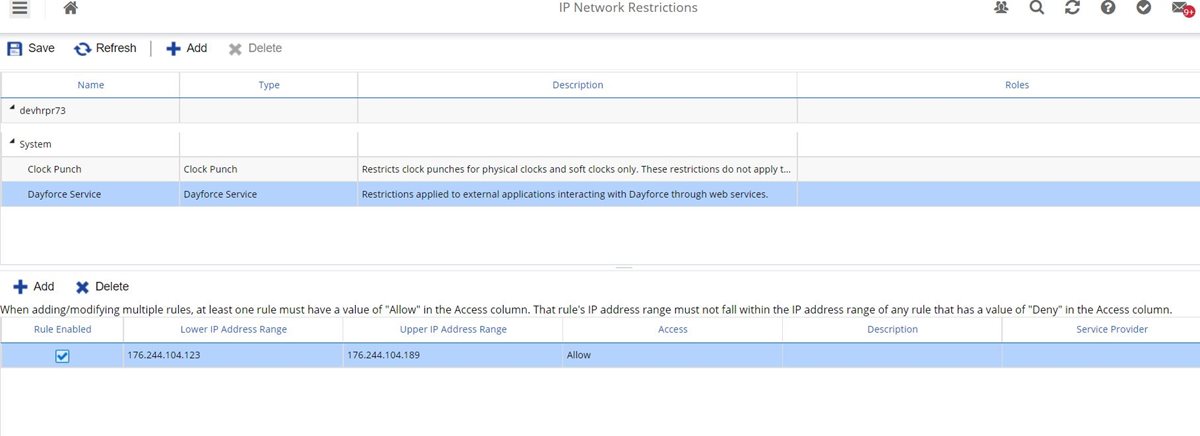
IP Network Restrictions
Access to Dayforce webservices can be restricted by IP address range. This allows you to restrict access to the webservices so that invocation can only occur from, for example, your hosting environment.
You can specify one or several
Allow or
Deny IP ranges.
Allow IP ranges should contain all IP ranges that you are expecting traffic from. You can define
Deny IP ranges to specifically identify undesirable sources of API traffic.
If you define IP restrinction ranges, Dayforce will only allow traffic from the
Allow IP ranges.
Setting IP Network restrictions is optional. If no IP Network restrictions is set, Dayforce will treat API calls from any IP range.
Role and user access control apply independently from IP Network restrictions.
Setting up IP restrictions can prevent other vendors you use to access Dayforce APIs and break integrations you have with them.
To keep vendor connections working, allow their IPs.
Add or edit an IP network restriction
- Go to System Admin > IP Network Restrictions.
- Select the existing System > Dayforce Service entry.
- In the section below the list of IP restriction types, click Add and complete the following:
- Select the Rule Enabled checkbox.
- Add a Lower IP Address Range and an Upper IP Address Range.
- Ensure that Allow is selected for at least one Access type.
- Optionally, enter a Description and a Service Provider.
- Click Save.
To edit an existing IP network restriction address range, select the
System > Dayforce Service entry in the list of IP network restrictions and then select the range in the corresponding list below the restriction.